
Tab Menu
Hover over any tab with an established session to access the tab menu overlay: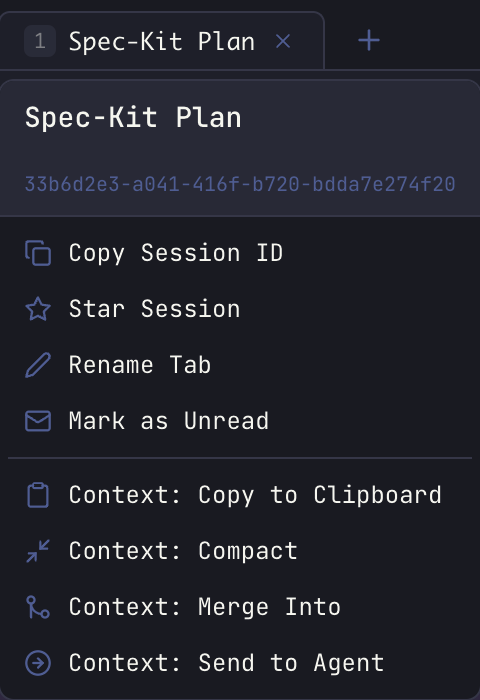
| Action | Requires Session | Description |
|---|---|---|
| Copy Session ID | Yes | Copy the session ID to clipboard (for session continuity) |
| Star Session | Yes | Bookmark this session for quick access |
| Rename Tab | Yes | Give the tab a descriptive name |
| Mark as Unread | Yes | Add unread indicator to the tab |
| Export as HTML | No (1+ logs) | Export conversation as self-contained HTML file |
| Context: Copy to Clipboard | No (1+ logs) | Copy the full conversation to clipboard |
| Context: Compact | No (5+ logs) | Compress context while preserving key information |
| Context: Merge Into | Yes | Merge this context into another session |
| Context: Send to Agent | Yes | Transfer context to a different agent |
| Context: Publish as GitHub Gist | No (1+ logs) | Share conversation as a public or secret GitHub Gist (requires gh CLI) |
| Move to First Position | No | Move this tab to the first position |
| Move to Last Position | No | Move this tab to the last position |
Tab Close Operations
The tab menu also provides bulk close operations for managing multiple tabs: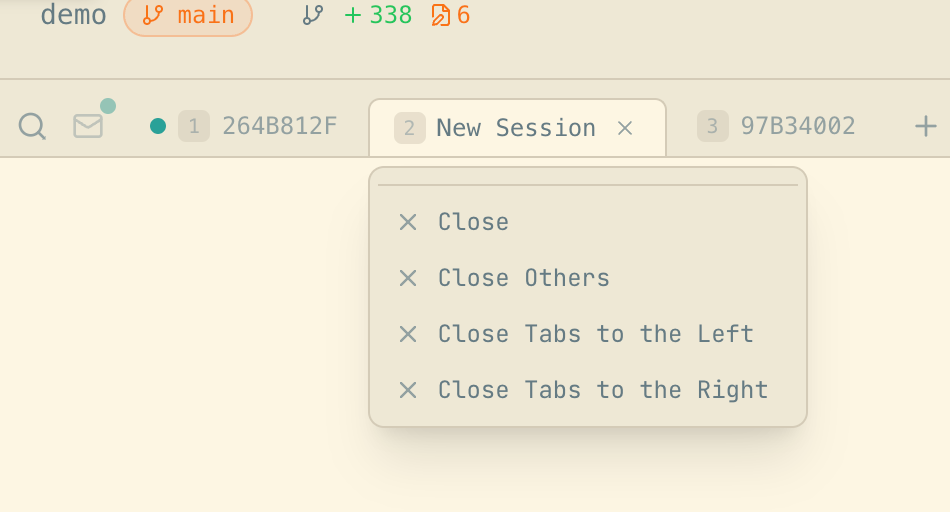
| Action | Description |
|---|---|
| Close | Close the current tab |
| Close Others | Close all tabs except this one |
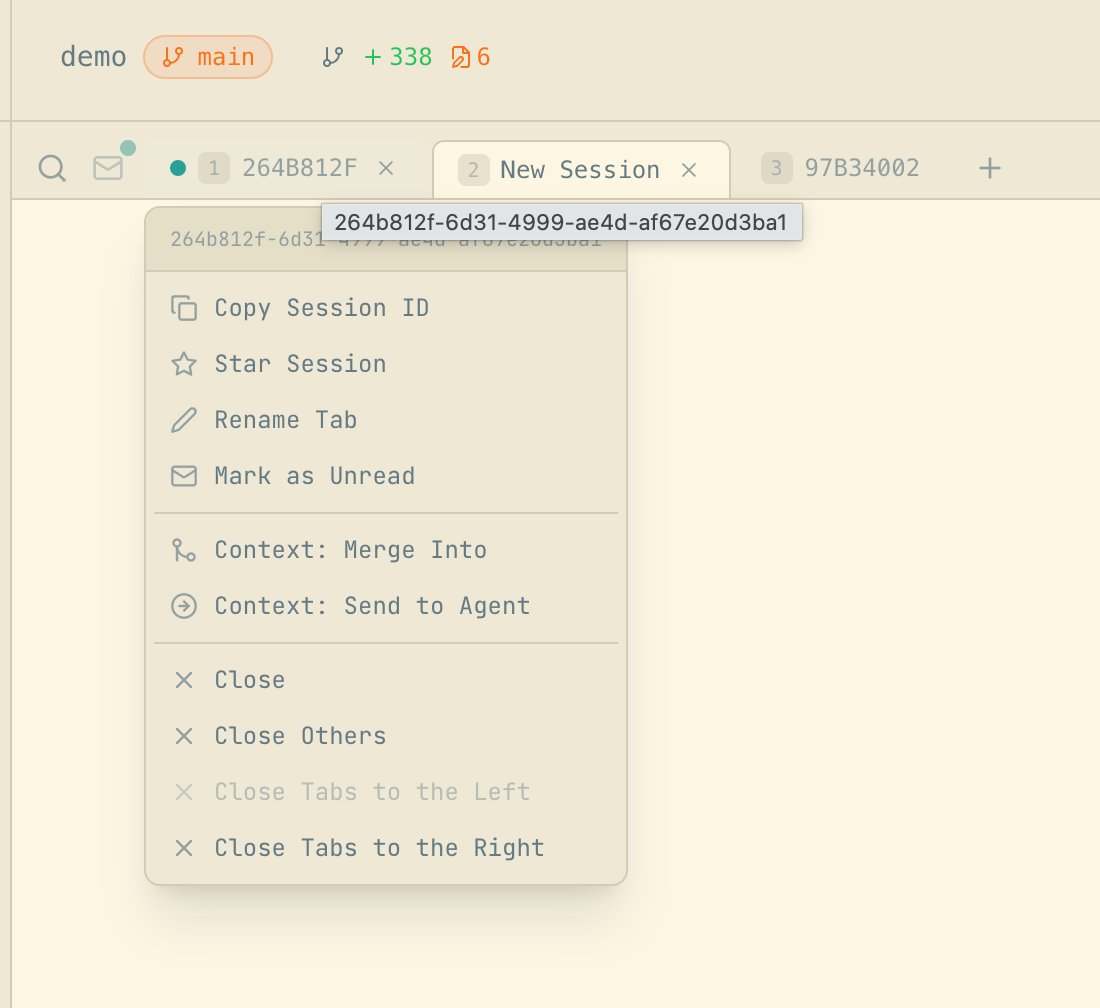
| Close Tabs to the Left | Close all tabs to the left of this one |
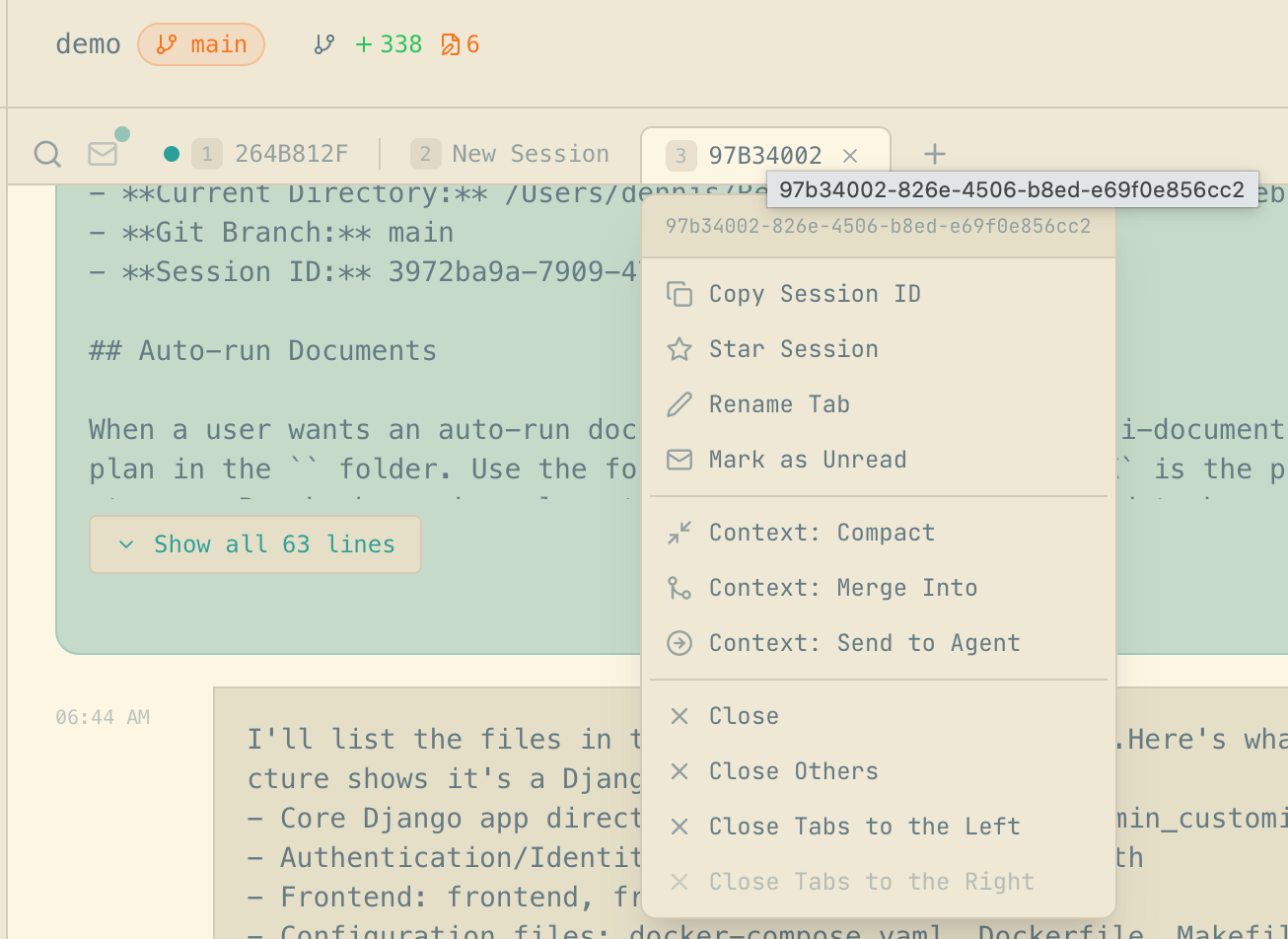
| Close Tabs to the Right | Close all tabs to the right of this one |
- First tab: “Close Tabs to the Left” is disabled
- Last tab: “Close Tabs to the Right” is disabled
- Single tab: “Close” and “Close Others” are disabled
Cmd+Shift+T / Ctrl+Shift+T to reopen recently closed tabs (up to 25 tabs are remembered).
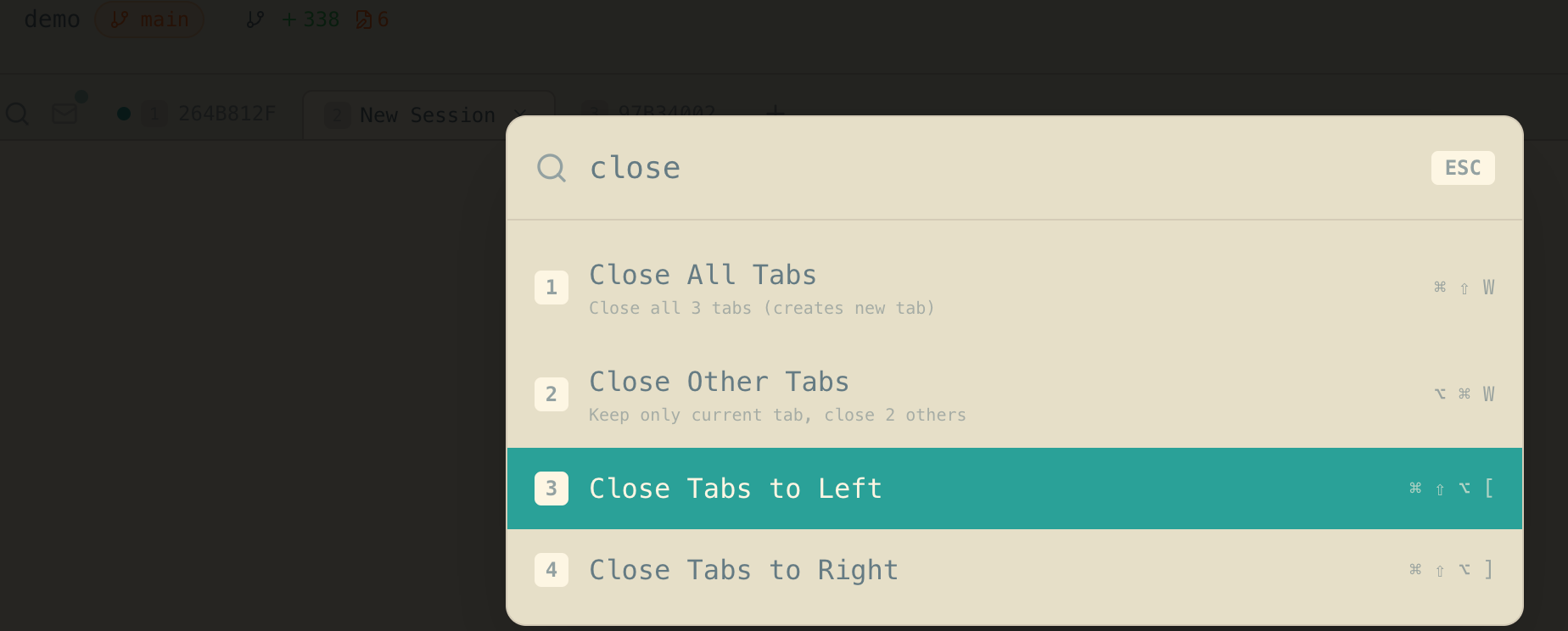
These actions are also available via Quick Actions (Cmd+K / Ctrl+K) with keyboard shortcuts displayed:
Tab Export
Export any tab conversation as a self-contained HTML file:- Hover over the tab → Export as HTML
- Choose a save location when prompted
- Full conversation history with all messages
- Your current theme colors — the export adopts your active Maestro theme
- Maestro branding with links to the website and GitHub
- Session metadata — agent type, working directory, timestamps, token usage
- Rendered markdown — code blocks, tables, and formatting preserved
- Context: Copy to Clipboard — Copy the raw conversation text to clipboard (for pasting into documents or chat)
- Context: Publish as GitHub Gist — Share as a public or secret GitHub Gist (requires
ghCLI to be installed)
Context management lets you combine or transfer conversation history between sessions and agents, enabling powerful workflows where you can:
- Compact & continue — Compress your context to stay within token limits while preserving key information
- Merge sessions — Combine context from multiple conversations into one
- Transfer to other agents — Send your context to a different AI agent (e.g., Claude Code → Codex)
Context Window Warnings
As your conversation grows, Maestro monitors context window usage and displays warnings when you’re approaching limits.
- Current context usage percentage
- Compact & Continue button for one-click context compression
Why Context Usage Matters
Operating near context limits degrades AI performance. When context reaches ~80% capacity or higher:- The AI loses access to earlier parts of your conversation
- Important decisions, code changes, and context get pushed out
- Response quality drops as the model struggles to maintain coherence
- You may experience more hallucinations and forgotten instructions
Configuring Warnings
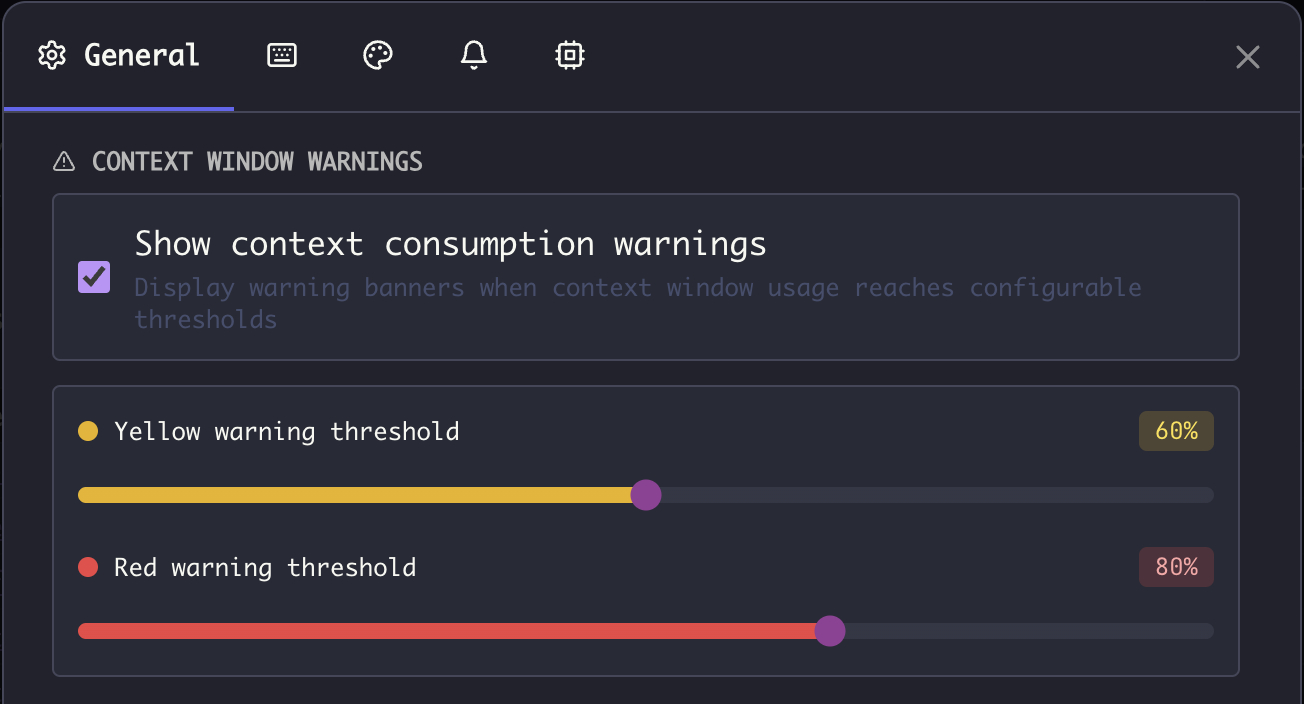
Customize warning thresholds in Settings (Cmd+, / Ctrl+,) → General → Context Window Warnings:
| Setting | Default | Description |
|---|---|---|
| Show context consumption warnings | Enabled | Toggle warning banners on/off |
| Yellow warning threshold | 60% | Early warning — good time to consider compacting |
| Red warning threshold | 80% | Critical — compact immediately to avoid degradation |
- Set yellow to 50-60% if you prefer earlier warnings
- Set red to 70-80% — going higher risks quality degradation
- Lower both thresholds if you frequently work on complex tasks that require the AI to remember many details
Compact & Continue
When your conversation approaches context limits, you can compress it while preserving essential information:- Hover over a tab → “Context: Compact”, or use Command Palette (
Cmd+K/Ctrl+K) → “Context: Compact” - The AI compacts the conversation, extracting key decisions, code changes, and context
- A new tab opens with the compressed context, ready to continue working
- The context warning sash appears (yellow at 60%, red at 80% usage)
- You want to continue a long conversation without losing important context
- You need to free up context space for new tasks
- Key decisions and their rationale
- Code changes and file modifications
- Important technical details and constraints
- Current task state and next steps
How Compaction Works
Compaction uses a multi-pass approach to handle conversations of any size: Eligibility Check: Compaction requires any one of these conditions:- Context usage ≥ 25% (as reported by the agent), OR
- Estimated conversation size ≥ 2,000 tokens (~8k characters), OR
- At least 8 meaningful messages (user and AI exchanges)
- Chunking — The conversation is split into chunks of ~50k tokens each
- Parallel summarization — Each chunk is sent to a separate batch-mode agent process
- Combination — Chunk summaries are combined together
- Consolidation — If the combined result exceeds 40k tokens, additional passes reduce it further
- Each pass asks the AI to aggressively reduce the summary while preserving key information
- A pass is only accepted if it reduces size by at least 10%
- Consolidation stops early if no meaningful reduction is achieved
- “Extracting context…” — Preparing the conversation
- “Summarizing chunk 1/4…” — Processing large conversations in parts
- “Consolidation pass 1/3…” — Additional reduction passes if needed
- “Finalizing compacted context…” — Creating the new tab
Merging Sessions
Combine context from multiple sessions or tabs into one:- Hover over a tab → “Context: Merge Into”, or use Command Palette (
Cmd+K/Ctrl+K) → “Context: Merge Into” - Search for or select the target session/tab from the modal
- Review the merge preview showing estimated token count
- Optionally enable Clean context to remove duplicates and reduce size
- Click “Merge Into”
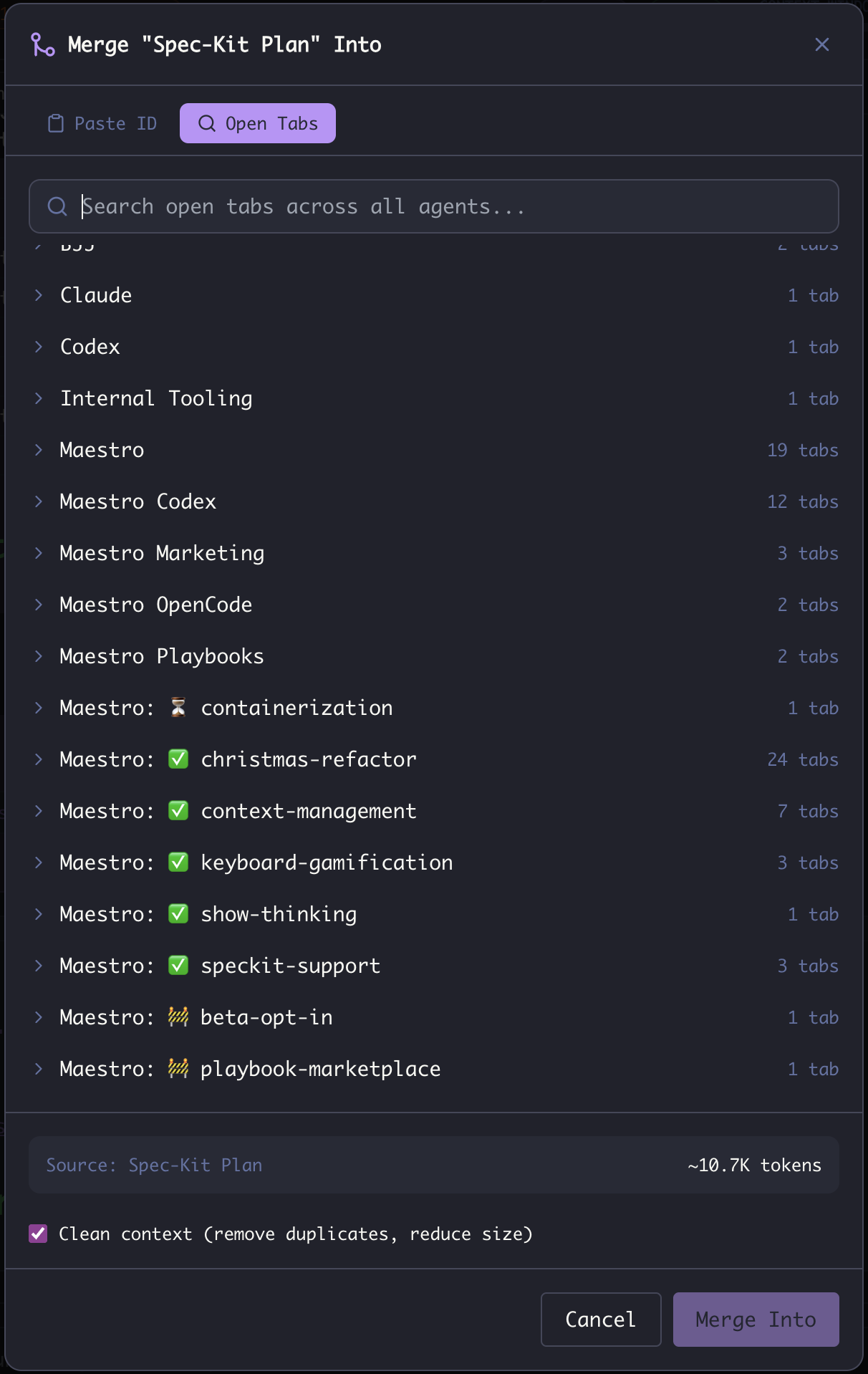
- Paste ID tab — Enter a specific session ID directly
- Open Tabs tab — Browse all open tabs across all agents
- Token estimate — Shows source size and estimated size after cleaning
- Agent grouping — Tabs organized by agent with tab counts
- Full conversation history (user messages and AI responses)
- Token estimates are shown before merge to help you stay within context limits
- You can merge tabs within the same session or across different sessions
- Large merges (100k+ tokens) will show a warning but still proceed
- Self-merge (same tab to itself) is prevented
- Enable “Clean context” for large merges to reduce token count
Sending to Another Agent
Transfer your context to a different AI agent:- Hover over a tab → “Context: Send to Agent”, or use Command Palette (
Cmd+K/Ctrl+K) → “Context: Send to Agent” - Search for or select the target agent from the list
- Review the token estimate and cleaning options
- Click “Send to Session”
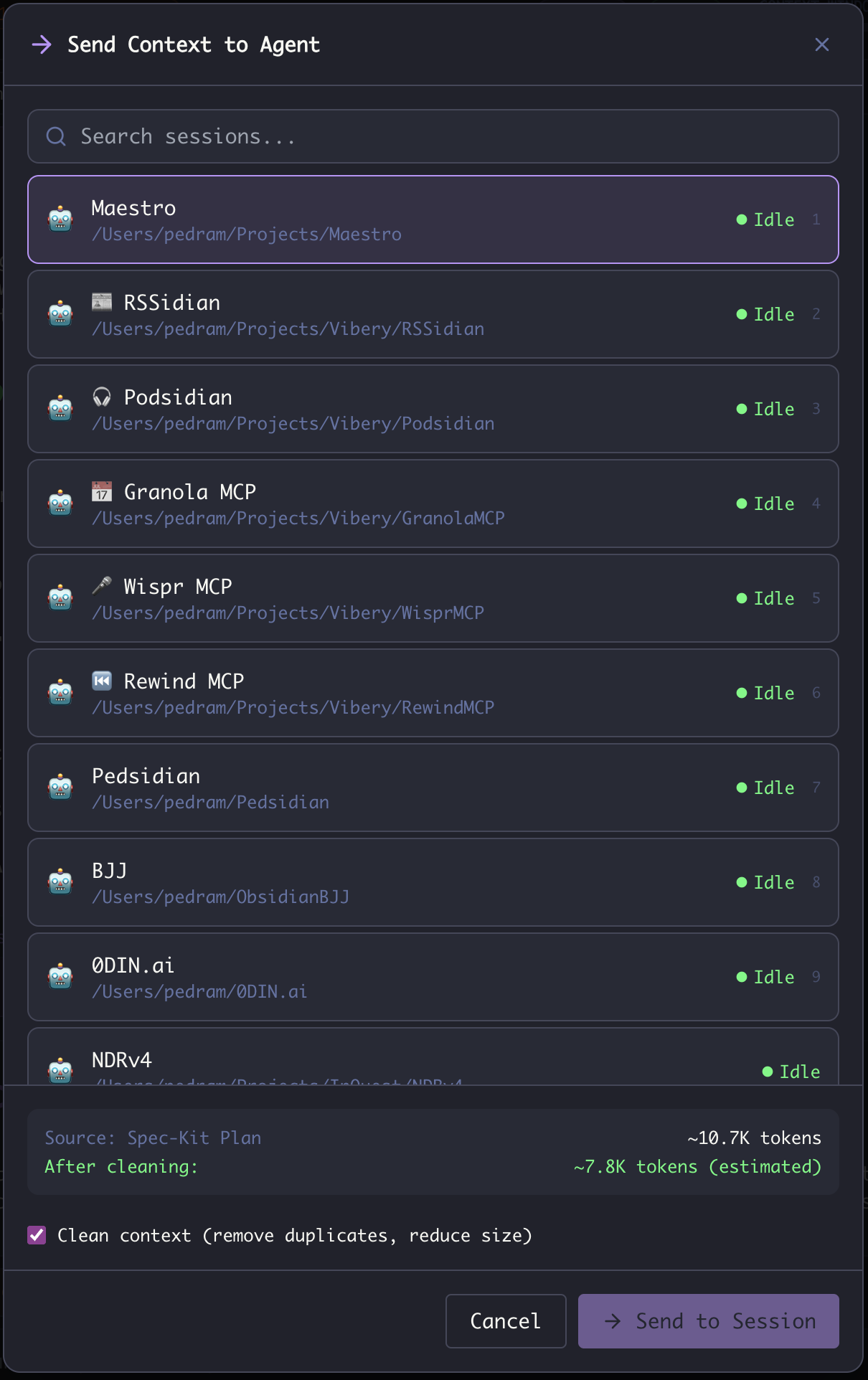
- Searchable agent list with status indicators (Idle, Busy, etc.)
- Agent paths to distinguish between agents with similar names
- Token estimate — Shows source size and estimated size after cleaning
- Clean context option — Remove duplicates and reduce size before transfer
- Remove duplicate messages and verbose output
- Condense while preserving key information
- Optimize token usage for the target session
- Start a task in Claude Code, then hand off to Codex for a different perspective
- Transfer a debugging session to an agent with different tool access
- Move context to an agent pointing at a different project directory
- Share context with a worktree sub-agent working on the same codebase