
Overview
SSH Remote Execution wraps agent commands in SSH, executing them on a configured remote host while streaming output back to Maestro. Your local Maestro instance remains the control center, but the AI agent runs remotely. Use cases:- Run agents on a powerful cloud VM with more CPU/RAM
- Access tools or SDKs installed only on specific servers
- Work with codebases that require particular OS or architecture
- Execute agents in secure/isolated environments
- Coordinate multiple agents across different machines in Group Chat
- Run Auto Run playbooks on remote projects
Configuring SSH Remotes
Adding a Remote Host
- Open Settings (
Cmd+,/Ctrl+,) - Navigate to the SSH Hosts tab
- Click Add SSH Remote
- Configure the connection:
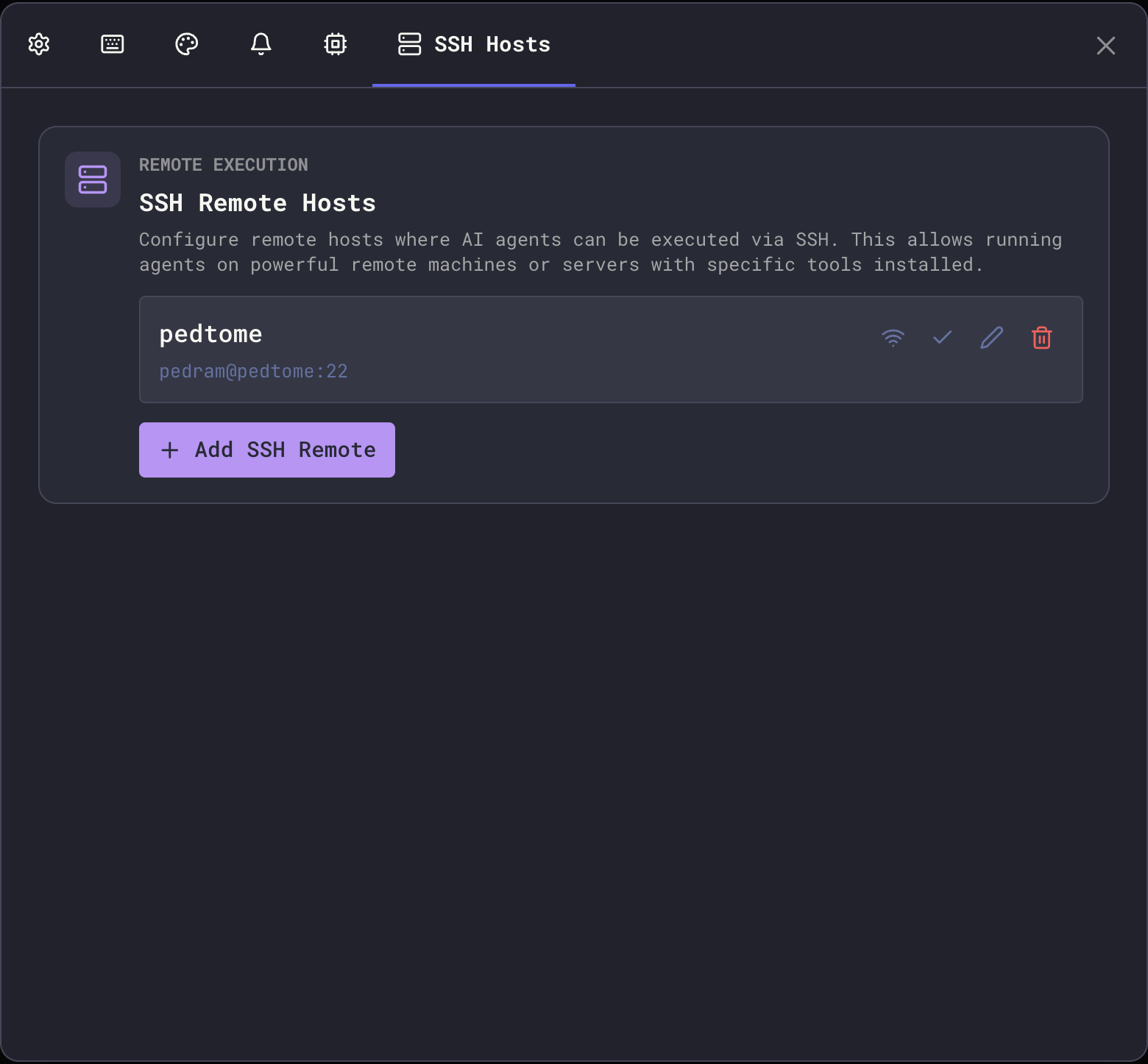
| Field | Description |
|---|---|
| Name | Display name for this remote (e.g., “Dev Server”, “GPU Box”) |
| Host | Hostname or IP address (or SSH config Host pattern when using SSH config) |
| Port | SSH port (default: 22) |
| Username | SSH username for authentication (optional when using SSH config) |
| Private Key Path | Path to your SSH private key (optional when using SSH config) |
| Remote Working Directory | Optional default working directory on the remote host |
| Environment Variables | Optional key-value pairs to set on the remote |
| Enabled | Toggle to temporarily disable without deleting |
- Click Test Connection to verify connectivity
- Click Save to store the configuration
Using SSH Config File
Maestro can import connection settings from your~/.ssh/config file, making setup faster and more consistent with your existing SSH workflow.
Importing from SSH Config
When adding a new remote, Maestro automatically detects hosts defined in your SSH config:- Click Add SSH Remote
- If SSH config hosts are detected, you’ll see an Import from SSH Config dropdown
- Select a host to auto-fill settings from your config
- The form shows “Using SSH Config” indicator when importing
How It Works
When using SSH config mode:- Host becomes the SSH config Host pattern (e.g.,
dev-serverinstead of192.168.1.100) - Username and Private Key Path become optional—SSH inherits them from your config
- Port defaults to your config’s value (only sent to SSH if overriding a non-default port)
- You can still override any field to customize the connection
~/.ssh/config:
- Select “dev-server” from the dropdown
- Leave username/key fields empty (inherited from config)
- Optionally override specific settings
- Benefit from advanced features like
ProxyJumpfor bastion hosts
Field Labels
When using SSH config mode, field labels indicate which values are optional:- Username (optional override) — leave empty to use SSH config’s
User - Private Key Path (optional override) — leave empty to use SSH config’s
IdentityFile
Clearing SSH Config Mode
To switch back to manual configuration:- Click the × button next to “Using SSH Config” indicator
- Fill in all required fields manually
Connection Testing
Before saving, you can test your SSH configuration:- Basic test: Verifies SSH connectivity and authentication
- Agent test: Checks if the AI agent command is available on the remote host
Setting a Global Default
Click the checkmark icon next to any remote to set it as the global default. When set:- All agents use this remote by default
- Individual agents can override this setting
- The default badge appears next to the remote name
Per-Agent Configuration
Each agent can have its own SSH remote setting, overriding the global default.Configuring an Agent
- Open the agent’s configuration panel (gear icon in session header, or via Settings → Agents)
- Find the SSH Remote Execution dropdown
- Select an option:

| Option | Behavior |
|---|---|
| Use Global Default | Follows the global setting (shows which remote if one is set) |
| Force Local Execution | Always runs locally, ignoring any global default |
| [Specific Remote] | Always uses this remote, regardless of global setting |
Resolution Order
When spawning an agent, Maestro resolves which SSH remote to use:- Per-agent explicit remote → Uses that specific remote
- Per-agent “Force Local” → Runs locally (ignores global)
- Per-agent “Use Global Default” → Falls through to global setting
- Global default set → Uses the global default remote
- No global default → Runs locally
Status Visibility
When a session is running via SSH remote, you can easily identify it: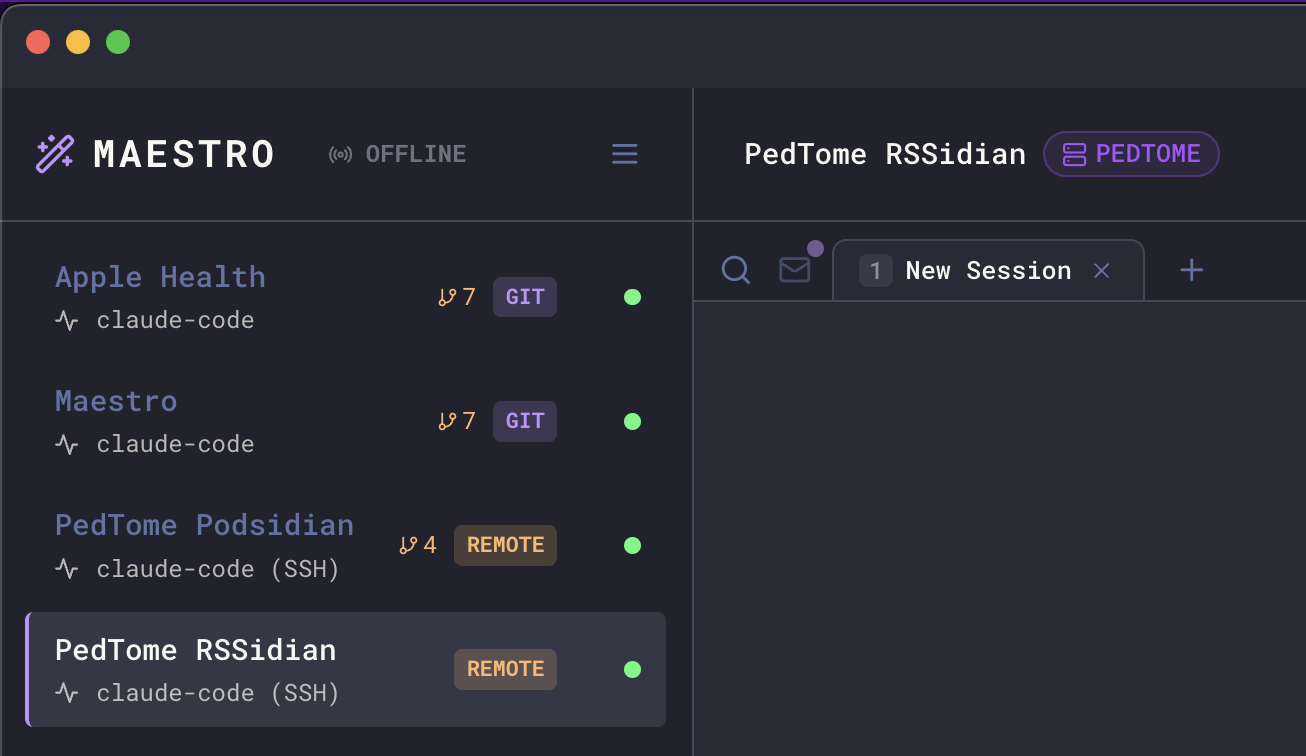
- REMOTE pill — Appears in the Left Bar next to the agent, indicating it’s configured for remote execution
- Host name badge — Displayed in the Main Panel header showing which SSH host the agent is running on (e.g., “PEDTOME”)
- Agent type indicator — Shows “claude-code (SSH)” to clarify the execution mode
- Connection state reflects SSH connectivity
- Errors are detected and displayed with SSH-specific context
Full Remote Capabilities
Remote agents support all the features you’d expect from local agents:Remote File System Access
The File Explorer works seamlessly with remote agents:- Browse files and directories on the remote host
- Open and edit files directly
- Use
@file mentions to reference remote files in prompts
Remote Auto Run
Run Auto Run playbooks on remote projects:- Auto Run documents can reference files on the remote host
- Task execution happens on the remote machine
- Progress and results stream back to Maestro in real-time
Remote Git Worktrees
Create and manage git worktrees on remote repositories:- Worktree sub-agents run on the same remote host
- Branch isolation works just like local worktrees
- PR creation connects to the remote repository
Remote Command Terminal
The Command Terminal executes commands on the remote host:- Full PTY support for interactive commands
- Tab completion works with remote file paths
- Command history is preserved per-session
Group Chat with Remote Agents
Remote agents can participate in Group Chat alongside local agents. This enables powerful cross-machine collaboration: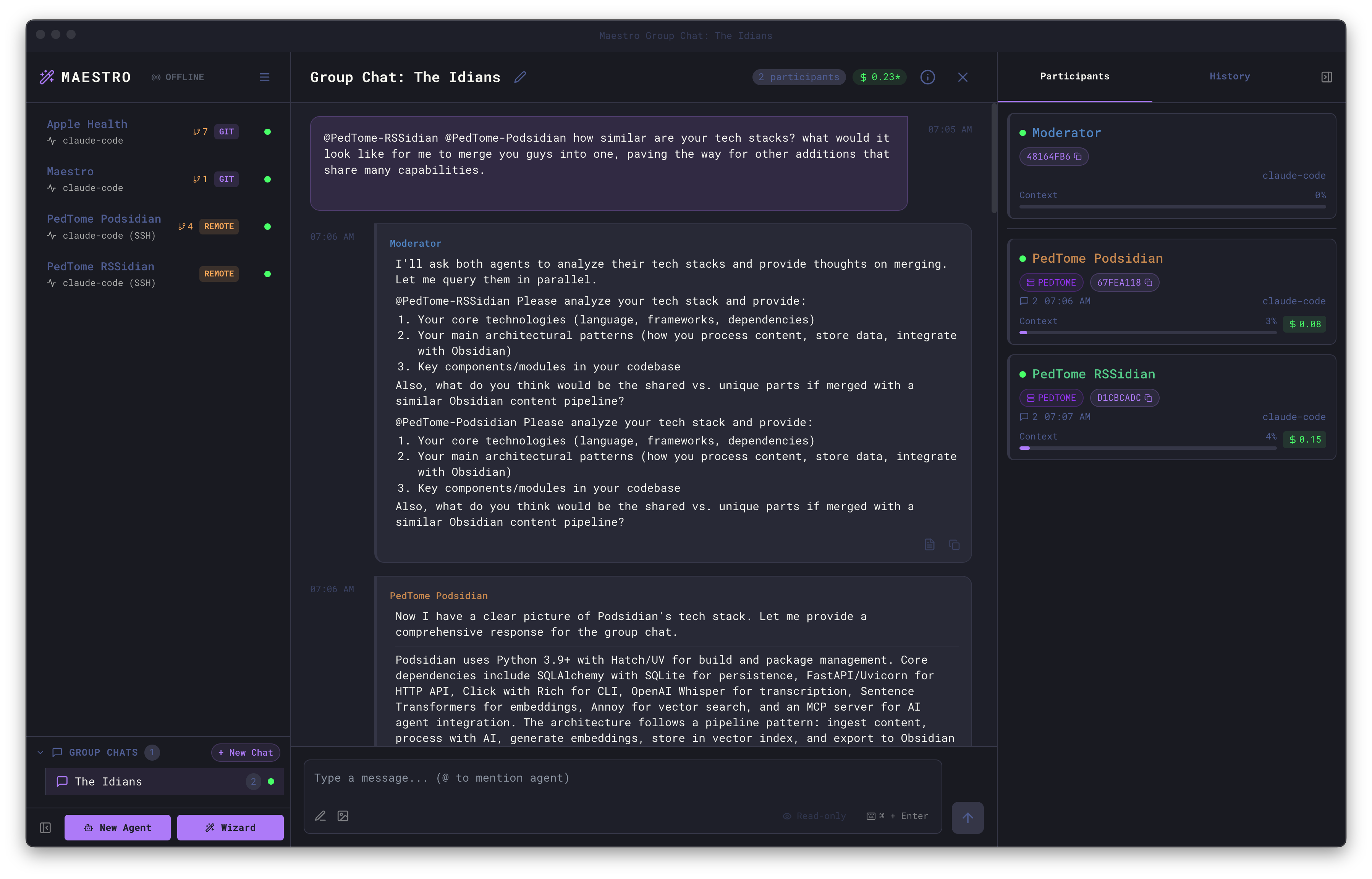
- Mix local and remote agents in the same conversation
- The moderator can be local or remote
- Each agent works in their own environment (local or remote)
- Synthesize information across different machines and codebases
- Comparing implementations across different environments
- Coordinating changes that span multiple servers
- Getting perspectives from agents with access to different resources
Troubleshooting
Authentication Errors
| Error | Solution |
|---|---|
| ”Permission denied (publickey)“ | Ensure your SSH key is added to the remote’s ~/.ssh/authorized_keys |
| ”Host key verification failed” | Add the host to known_hosts: ssh-keyscan hostname >> ~/.ssh/known_hosts |
| ”Enter passphrase for key” | Use a key without a passphrase, or add it to ssh-agent: ssh-add ~/.ssh/your_key |
Connection Errors
| Error | Solution |
|---|---|
| ”Connection refused” | Verify SSH server is running on the remote host |
| ”Connection timed out” | Check network connectivity and firewall rules |
| ”Could not resolve hostname” | Verify the hostname/IP is correct |
| ”No route to host” | Check network path to the remote host |
Agent Errors
| Error | Solution |
|---|---|
| ”Command not found” | Install the AI agent on the remote host |
| ”Agent binary not found” | Ensure the agent is in the remote’s PATH |
Tips
- Import from SSH config: Use the dropdown when adding remotes to import from
~/.ssh/config—saves time and keeps configuration consistent - Bastion hosts: Use
ProxyJumpin your SSH config for multi-hop connections; Maestro inherits this automatically - Key management: Use
ssh-agentto avoid passphrase prompts - Keep-alive: Configure
ServerAliveIntervalin SSH config for long sessions - Test manually first: Verify
ssh host 'claude --version'works before configuring in Maestro
Security Considerations
- SSH keys should have appropriate permissions (
chmod 600) - Use dedicated keys for Maestro if desired
- Remote working directories should have appropriate access controls
- Environment variables may contain sensitive data; they’re passed via SSH command line
Limitations
- PTY (pseudo-terminal) features are not available over SSH
- Some interactive agent features may behave differently
- Network latency affects perceived responsiveness
- The remote host must have the agent CLI installed and configured